Open Assistive Technology
SLCC's open assistive technology solutions are geared towards granting the SLCC community universal access to services and products. Universal access is the idea that products and systems should be accessible to everyone. The goal is to design in a way that minimizes the need for adaptations or specialized solutions.
Read&Write Literacy Software
Read&Write is a software with features that help students read, write and study independently. This tool offers help with everyday tasks like reading text out loud, understanding new words, helping with assignments, and editing written work. You can also have PDF files read aloud using their new OrbitNote tool.
Learn more about Read&Write at SLCC
Aira.io Visual Interpreting
Aira is a live visual interpreting service used by individuals who are blind or low vision for physical navigation, access to visual information, and enhancing everyday efficiency, engagement and independence.
Salt Lake Community College's Universal Access Committee and Accessibility & Disability Services are sponsoring a free Aira access offer. Salt Lake Community College offers free Aira access on campus, the SLCC website, and Canvas. Just download the Aira Explorer app, log in, and use your phone's camera to connect with a trained Aira agent.
Links to Aira
Setting Up Mobile App
- Download the Aira Explorer app to your smartphone: iOS App | Android App
- Open the app, select "Create a free account" (or sign into an existing account)
- Continue with either Google, Apple, Phone Number, or Email
- You're now ready to connect with an Aira agent.
Accessing Canvas and SLCC.edu
Aira has a browser-based version where you can share the visuals on your computer screen with a trained visual interpreter. We offer Aira interpreting on all SLCC websites and Canvas pages. Aira will also work with any web pages that are linked from those. Additionally, if needed, the Aira agent can also securely and remotely access control of your computer to complete certain tasks.
The following instructions are for how to get started with this service:
Setting up RIM
Remote Incident Manager (RIM) is a software that allows an Aira agent to see the caller’s computer screen and, if necessary, remotely control the computer. You will need to set it up before making your call with Aira.
Instructions:
- Download RIM to your device. The RIM download page has options for Windows and MacOS.
- Open the downloaded file and complete the steps in the installation wizard.
- Once installed, you can now open RIM. (The application will be called "Remote Incident Manager")
Activating SLCC Access Offer
Now you'll need to open Aira and set up SLCC's access offer.
Instructions:
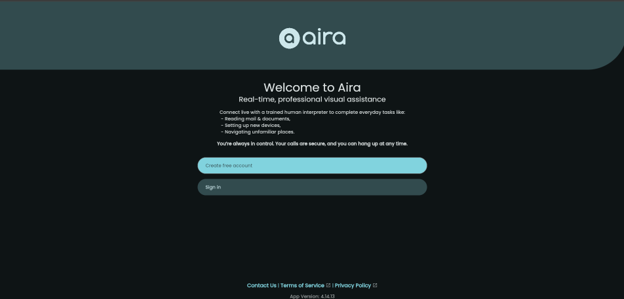
- Go to aira.io. This will open the Welcome page. You can create a free account here or sign in to an existing account.
- Your browser will at some point ask for permission to use your camera and microphone. Select allow. (You do not have to share your camera feed with the Aira agent when you make a call, but you do have to allow the browser permission.)
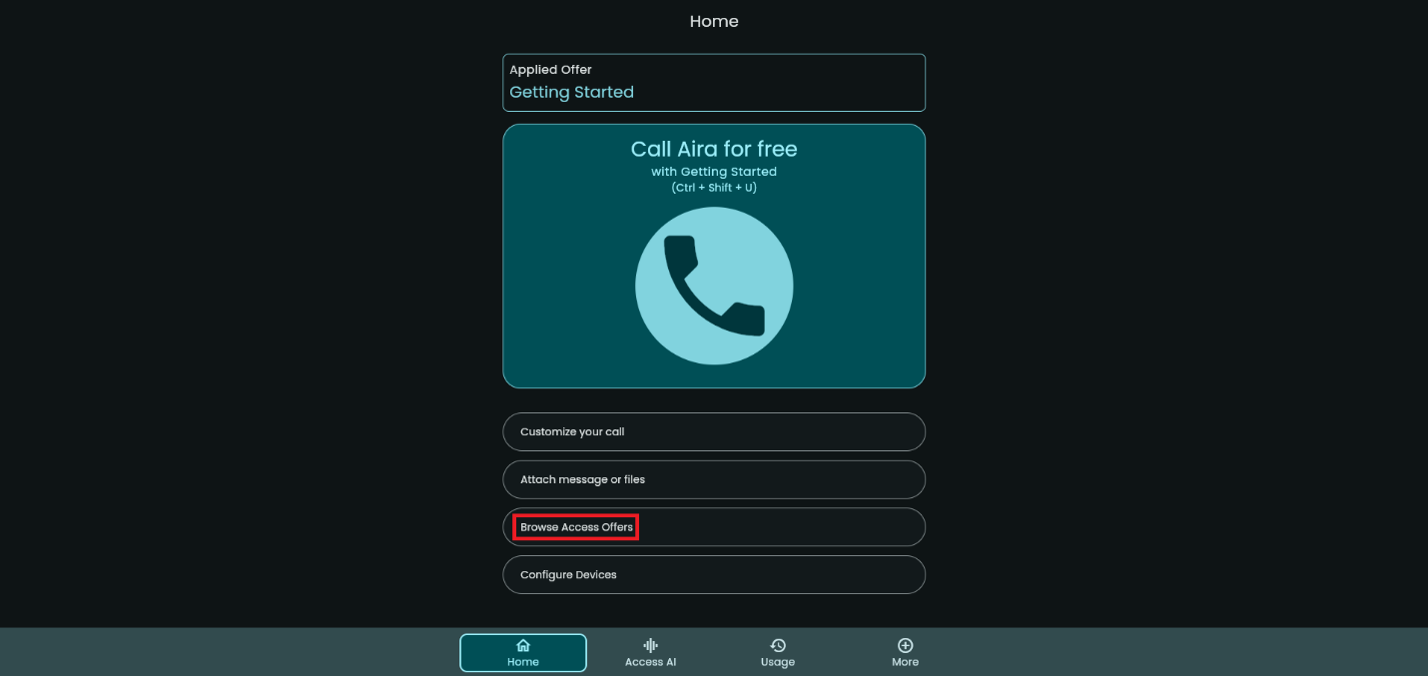
- Once you're logged in, it will take you to the Home page. Tab to "Browse Access Offers" button, hit enter.
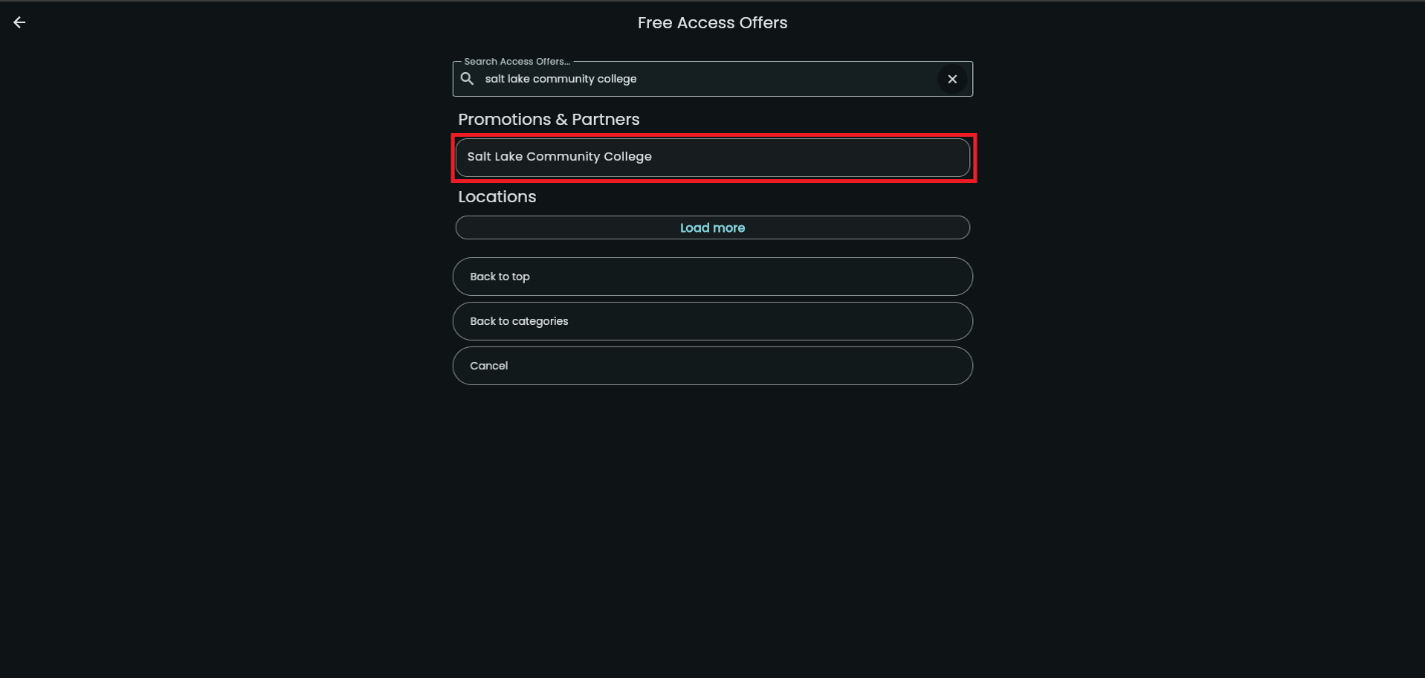
- On this Free Access Offers page, tab to the "Search Access Offers" text box and type in "Salt Lake Community College", then hit enter. Tab to "Salt Lake Community College" button, press enter.
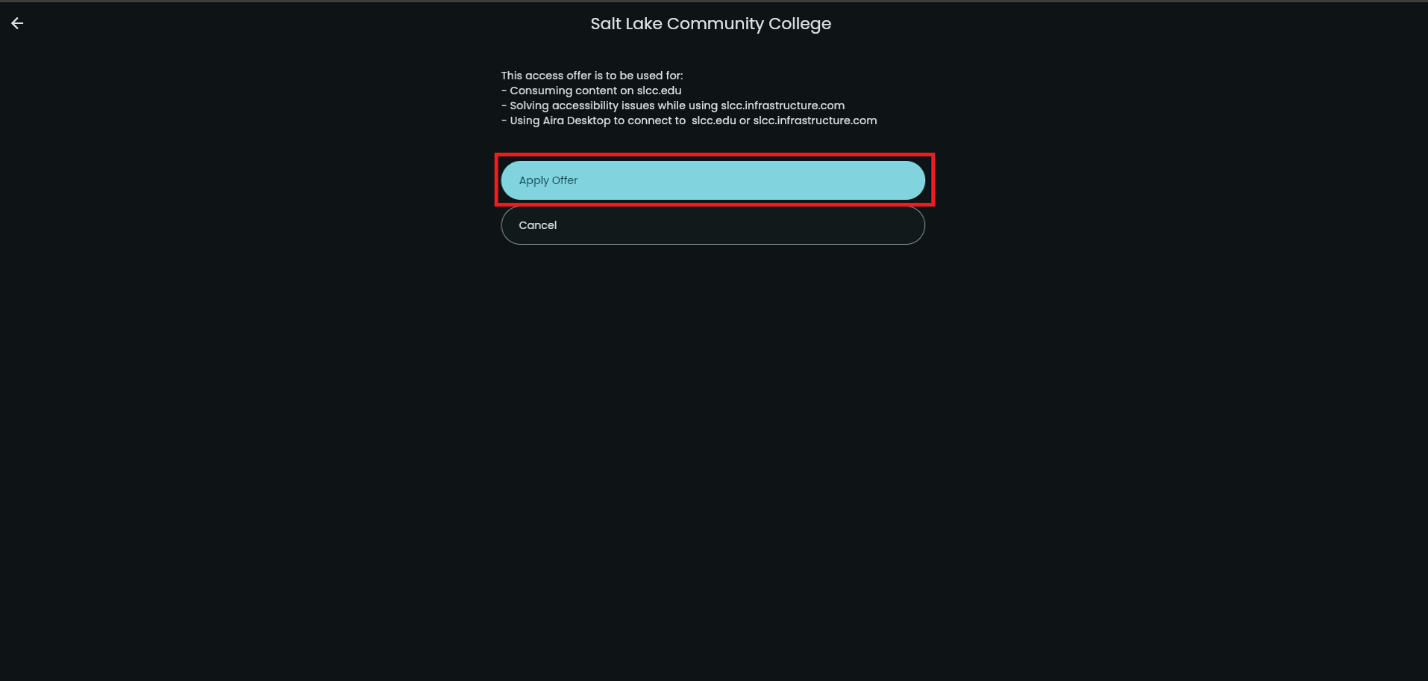
- On this page, tab to the "Apply Offer" button, hit enter.
Preparing for Your Call
Now that you've set up RIM and SLCC's access offer, you can now configure your settings for your first call.
Instructions:
From the home page of Aira explorer, you can go into the following sub-menus to prepare for your call. At any time in these menus, you can press Ctrl + Shift + U to start a call. (Note: the menus listed below are listed in a different order than they are on the page)
- "Configure Devices" button (do this first): choose the microphone, speaker, and camera you'd like to use for your call. If you don't configure these, it will just use your device default.
- "Customize your call" button: select the purpose of your call, from the options of "navigation", "Microsoft Quick Assist", and "Adobe Acrobat" checkboxes. You can choose more than one, or none. Once you've made your selection, hit enter on the "Make a call" button.
- "Attach message or files" button: type in a message for the agent and/or attach a file to call the agent with. This option also allows you to call the agent with the "I can't talk out loud right now" option selected. Once you've typed your message, attached your file, and/or selected that you can't talk out loud, hit enter on the "Call an Aira agent" button.
During Your Call
Once you start the call and connect with an agent, they will ask you what you'd like to do.
If you'd like to have the agent see your computer screen or remotely control your computer…
- Ask the agent, "Can we connect on a RIM call?"
- Open the RIM application on your computer
- The Aira agent will give you a keyword to enter into RIM. Enter the keyword into the text box in the RIM application, and then hit the "Connect" button.
- The Aira agent should now be able to remotely view your computer screen. For anything on SLCC's website, Canvas, or pages linked from those, you can ask for visual interpreting and control assistance.