Scheduling Appointments
Note: Click any image to expand.
You can use MySuccess to schedule appointments with a variety of Student Services on campus. To get started, you can either click on the video below or follow the step-by-step instructions with pictures.
Scheduling Appointments (screenshots)
1. Log Into MySLCC
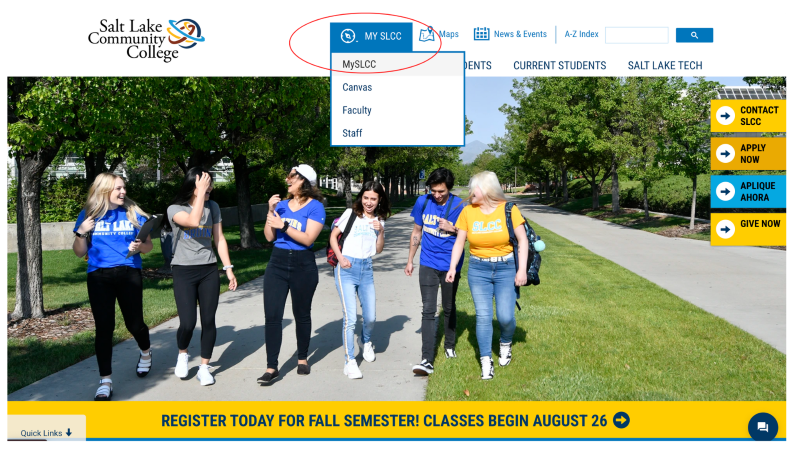
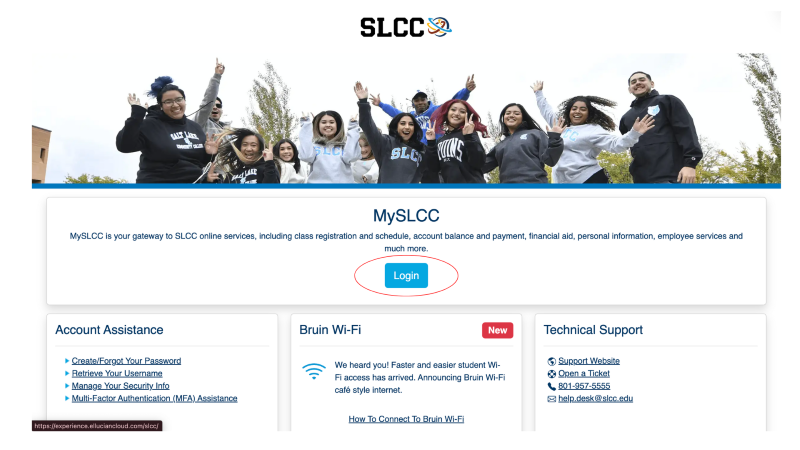
2. Click Login
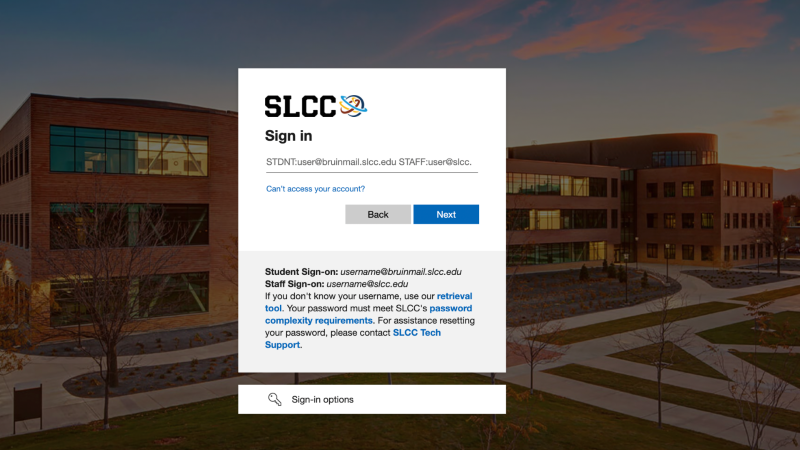
3. Log into MySLCC using your SLCC Credentials
4. Find the MySuccess card and click on "MySuccess Login"
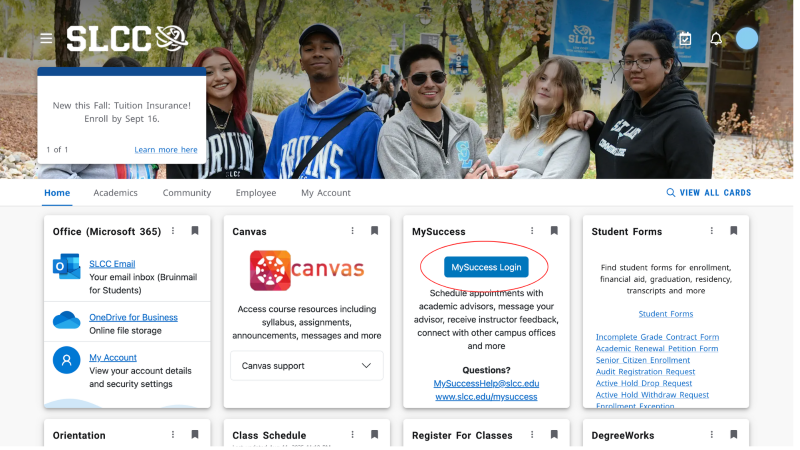
5. Click on the three lines in the left-hand corner
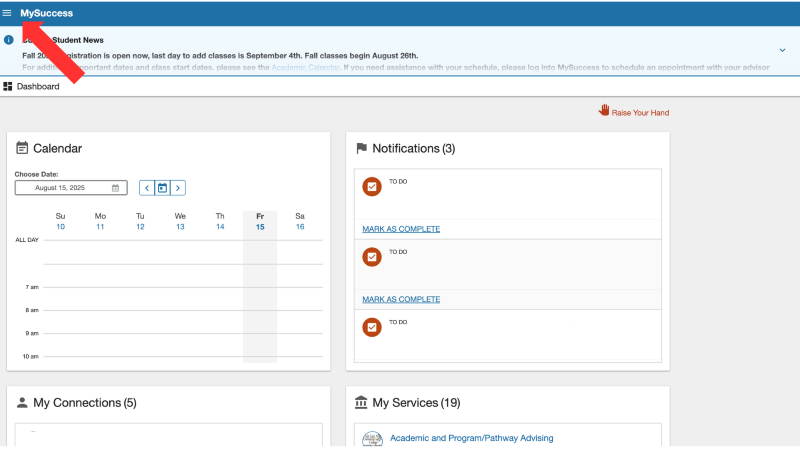
6. Click on "My Success Network"
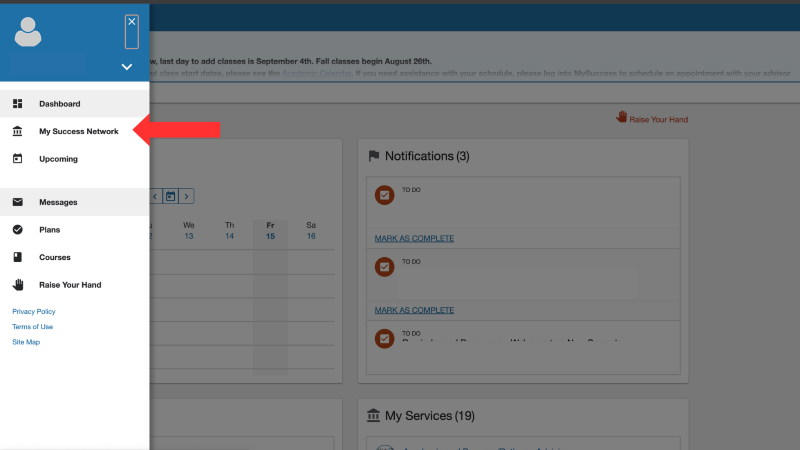
7. You can use the search bar and find the person, or you can use the cards below to find a service.
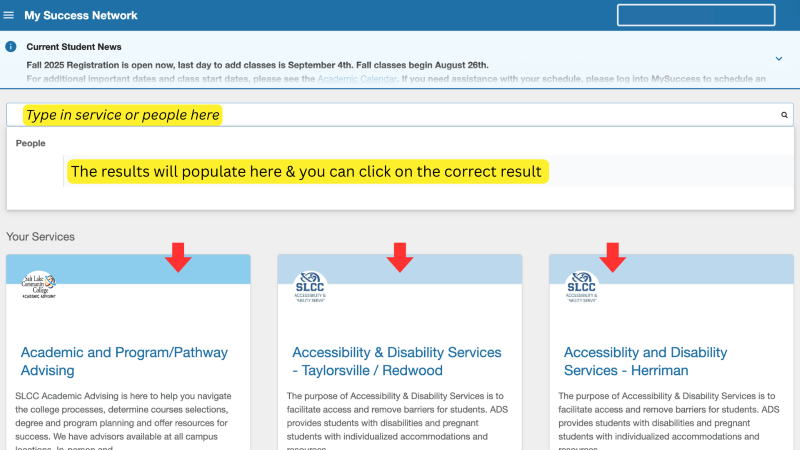
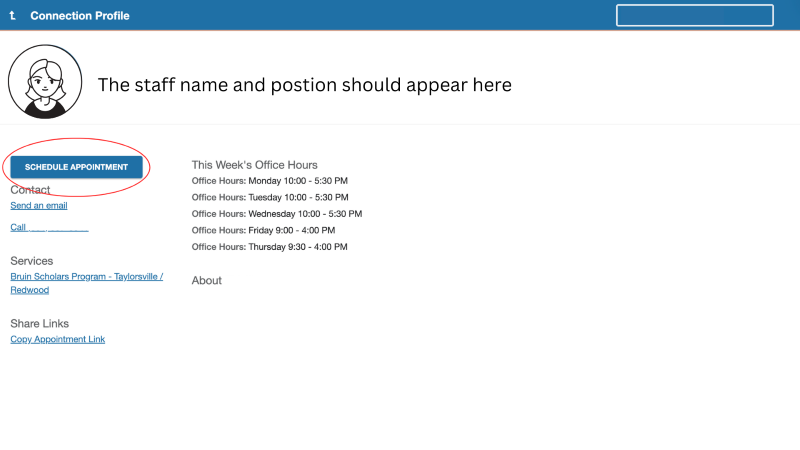
8. Click on "Schedule Appointment"
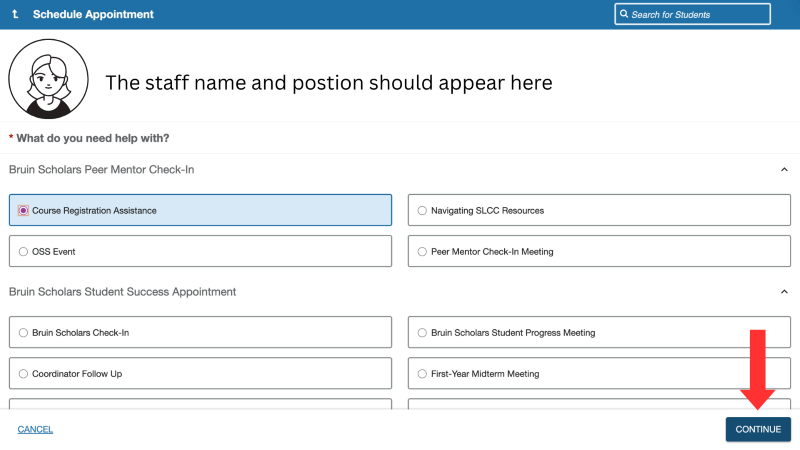
9. Please select the reason for the meeting (meeting option will vary according to staff your meeting with), then click "Continue"
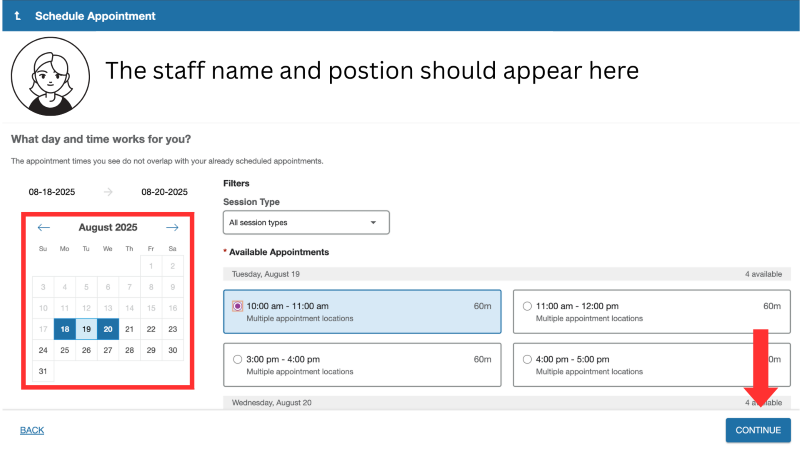
10. Use the calendar to select a range of days that works with your schedule (you must select a start day and an end day for the range). Please note the locations available when picking a time. Once you have selected an appointment time, click "Continue."
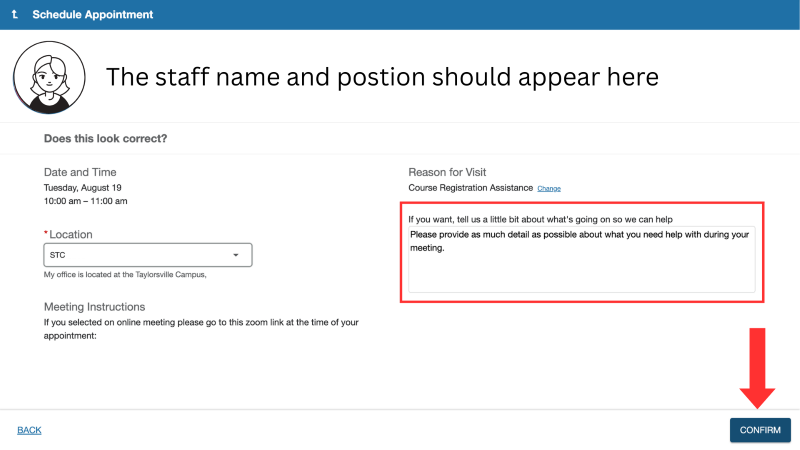
11. Choose the location for your meeting. If in person, their office location should appear after being selected. If you prefer online, the link can be found in the meeting instructions.
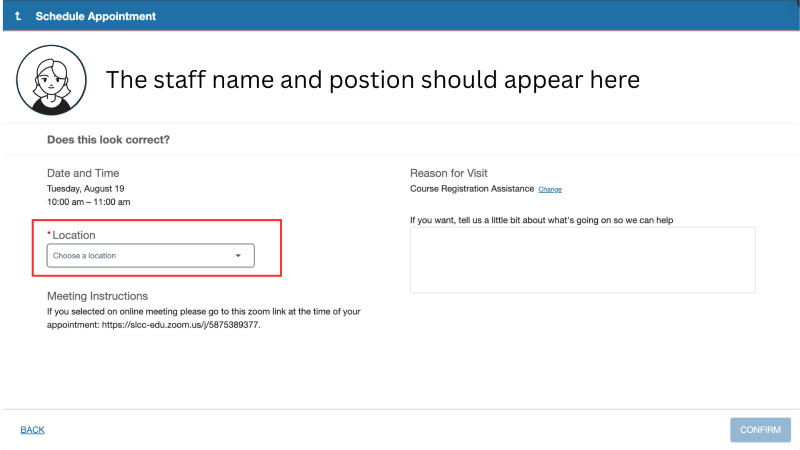
12. Fill in the text box with the details of your reason for meeting. This helps us prepare and better assist you. After choosing a location and filling in the text box you can click "Confirm"
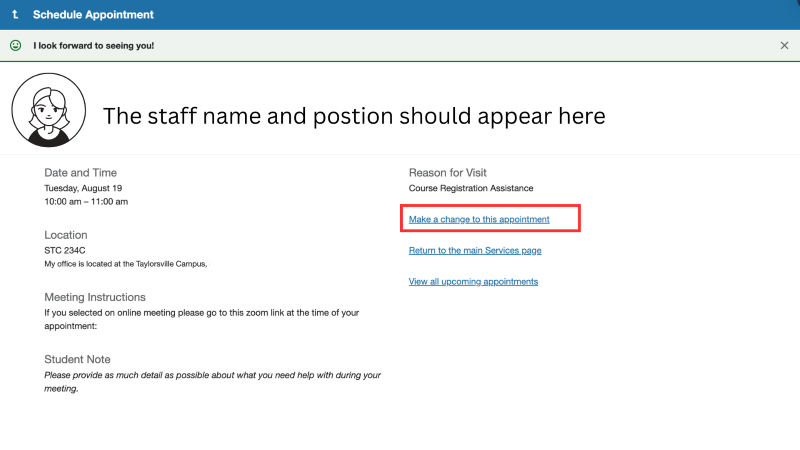
13. This is the confirmation page. We recommend students take a picture of this screen. You can also make changes to your appointment here.